Version Control with Git: Part 2#
In the first Git module, we learned to work independently with Git repositories on the local command line. In this second part, we will focus on using the GitHub web interface and collaborating with others. We will also take a look at README docs and how they can be a useful addition to your git repository.
GitHub Personal Access Tokens#
GitHub has recently made changes to their authentication system. While you still use your password for logging into the website, for the command line you will need to use a personal access token. To create a personal access token, navigate to your GitHub account settings. You can click your icon in the top right corner and go all the way down to “Settings”, or go to the url below once logged in.
https://github.com/settings/profile
Then click on “Developer settings” => “Personal access tokens” => “Tokens (classic)” => “Generate new token (classic)”.

Developer Settings#

Create a personal access token.#
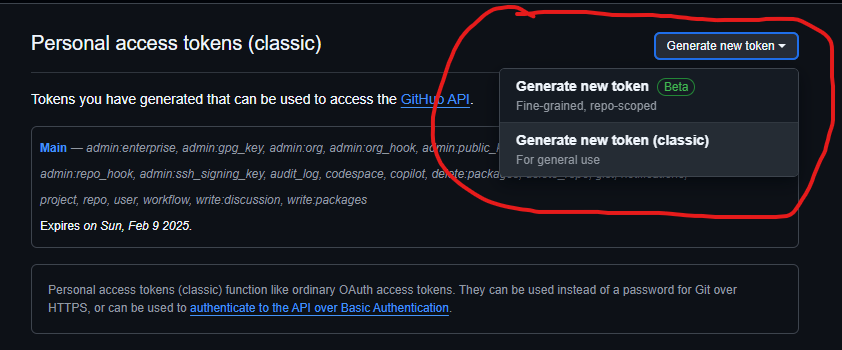
Generate new token.#
There is a note to describe what the token is for. We will be using this token throughout class for homeworks but you can also use this on your own for any other projects so just write a few words about the token being used for general use.
You also select how long you like a token to be valid for. It’s a good idea to not keep a token active for so long that way it is secure incase it gets into the wrong hands. For now, select the longest time period which is 90 days.
You then have a set of checkboxes for what permissions you like the token to allow. Since we wanted our token to do everything go ahead and check every box for now. At the bottom of the page is a button to “Generate token”. Click that when you are ready.
Your token will then be generated and you will see a page with the token.

Generated token.#
Copy your token somewhere safe. You can now use this token in place of your password when you are prompted for it in the command line.
Attention
This is the only opportunity you have to view your actual token! Once you leave this page, you will not be able to see it again. If you lose it, you will have to generate a new token. Be sure to store it in a secure location.
Link a Local Repository to GitHub#
Version control really comes into its own when we begin to collaborate with other people. We already have most of the machinery we need to do this; the only thing missing is to copy changes from one repository to another.
Systems like Git allow us to move work between any two repositories. In practice, though, it’s easiest to use one copy as a central hub, and to keep it on the web rather than on someone’s laptop. Most programmers use hosting services like GitHub, Bitbucket, or GitLab to hold those main copies.
Let’s start by sharing the changes we’ve made to our current project with the world. Log in to GitHub, then click on the icon in the top right corner to create a new repository:
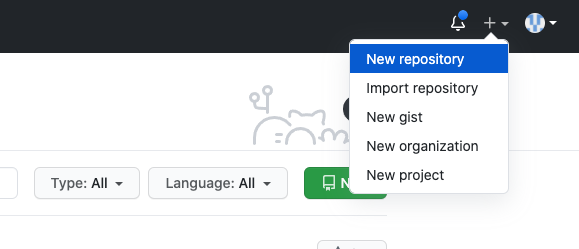
Click ‘New repository’.#
Important
When creating this repository be sure to create a completely empty repository with No README or .gitignore. Otherwise it will create issues for this exercise.
As soon as the repository is created, GitHub displays a page with a URL and some
information on how to configure your local repository. Provide a name for your
new repository like python-test (or whatever you want, it doesn’t have to
match the name of your local folder).
Note that our local repository still contains our earlier work on python_test_1.py
and other files, but the remote repository on GitHub doesn’t contain any memory
of python_test_1.py yet. The next step is to connect and sync the two repositories.
We do this by making the GitHub repository a “remote” for the local repository. The
home page of the repository on GitHub includes the string we need to identify it:

Follow the instructions for pushing an existing repository.#
Back inside your terminal in the local Git repo, link it to the repo on GitHub and confirm the link was created:
[terminal]$ git remote add origin https://github.com/andrewsolis/python-test.git
[terminal]$ git remote -v
origin       https://github.com/andrewsolis/python-test.git (fetch)
origin       https://github.com/andrewsolis/python-test.git (push)
Attention
Make sure to use the URL for your repository instead of the one listed here.
The name origin is a local nickname for your remote repository. We could use
something else if we wanted to, but origin is by far the most common choice.
This command will push the changes from our local repository to the repository on GitHub: Be sure to enter in your GitHub username and personal access token when prompted.
[terminal]$ git branch -M main
[terminal]$ git push -u origin main
Warning: Permanently added the ECDSA host key for IP address '140.82.112.4' to the list of known hosts.
Counting objects: 3, done.
Delta compression using up to 8 threads.
Compressing objects: 100% (2/2), done.
Writing objects: 100% (3/3), 223 bytes | 0 bytes/s, done.
Total 3 (delta 0), reused 0 (delta 0)
To git@github.com:wjallen/python-test.git
 * [new branch]      main -> main
Branch main set up to track remote branch main from origin.
Now that the repositories are synced, your development workflow has evolved to
include the git push operation. From here on, if you make changes to your code,
you can expect to follow the changes with the commands:
# Make some edits to "example_file.py"
[terminal]$ git status
[terminal]$ git add example_file.py
[terminal]$ git commit -m "description of changes"
[terminal]$ git push
Clone the Repository#
Spend a few minutes browsing the web interface for GitHub. Now, anyone can make
a full copy of the python-test repo including all the commit history by performing:
[terminal]$ git clone https://github.com/andrewsolis/python-test.git
Cloning into 'python-test'...
remote: Enumerating objects: 15, done.
remote: Counting objects: 100% (15/15), done.
remote: Compressing objects: 100% (10/10), done.
remote: Total 15 (delta 4), reused 15 (delta 4), pack-reused 0
Unpacking objects: 100% (15/15), done.
If the repository on GitHub gets ahead of your local repository, i.e. it has some changes in it that someone else pushed from somewhere else, or you pushed from a different machine, then you can try to update your local repository to pull the changes back down.
[terminal]$ git remote update    # checks to see if there are updates in the remote
[terminal]$ git pull             # pulls those updates down to local
Warning
If you have changes in local files that conflict with the remote repository
(i.e. the repository on GitHub), the git pull will fail and you have
found your way into a “merge conflict”.
Good luck!
Git / Version Control Concepts#
Let’s take a quick intermission to lean some important definitions (most of these things can easily be managed in the GitHub web interface):
Fork#
A fork is a personal copy of another user’s repository that lives on your account. Forks allow you to freely make changes to a project without affecting the original. Forks remain attached to the original, allowing you to submit a pull request to the original’s author to update with your changes. You can also keep your fork up to date by pulling in updates from the original.
Branch#
A branch is a parallel version of a repository. It is contained within the repository, but does not affect the primary or main branch allowing you to work freely without disrupting the “live” version. When you’ve made the changes you want to make, you can merge your branch back into the main branch to publish your changes. For more information, see About branches.
Tag#
Git has the ability to tag specific points in history as being important. Typically people use this functionality to mark release points (v1.0, and so on).
Pull Request / Merge Request#
Pull requests are proposed changes to a repository submitted by a user and accepted or rejected by a repository’s collaborators. Like issues, pull requests each have their own discussion forum. For more information, see About pull requests.
Collaborating with Others#
A public platform like GitHub makes it easier than ever to collaborate with others on the content of a repository. You can have as many local copies of a repository as you want, but there is only one “origin” repository - the repository hosted on GitHub. Other repositories may fall behind the origin, or have changes that are ahead of the origin. A common model for juggling multiple repositories where separate individuals are working on different features is the GitFlow model:
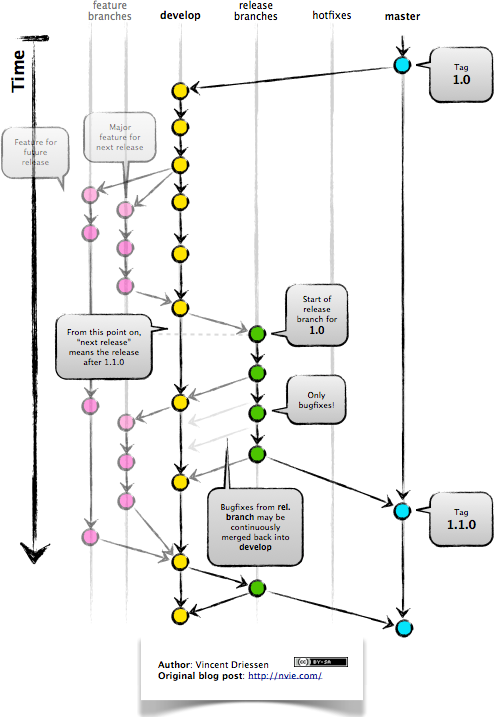
GitFlow model#
EXERCISE#
Let’s work on a branch plus pull request in the GitHub web interface.
Locate and navigate to your repository
Click on the branch / tag navigator near the top right and start typing in a new name to create a new branch
By default, it should switch you to the new branch. Click on one of your files and edit it (e.g. add a comment) directly in the web interface
Navigate to the “Pull requests” tab and click on “New pull request”
Make sure to select the original branch “main” as the base, and your new branch as the downstream for comparison
Review the code changes and make everything is as expected before choosing “Create pull request”
Now the owner of the repository (you) can accept the pull request, merging the edits into the main branch
What are the differences between a “merge commit”, “squash and merge”, and “rebase and merge”? The differences are subtle. All will result in the edits getting merged into the main branch. It is mostly a stylistic thing, and the best method depends on whatever the rest of developers agree to use. More info on the differences here.
EXERCISE#
Let’s next work on a fork plus pull request in the GitHub web interface.
Navigate to this repository: andrewsolis/python-test
Click the “Fork” button near the top right and fork it to your own user space
Now you could either
git cloneyour fork, put in a new file, thengit add=>git commit=>git push; OR you could click “Add file” in the GitHub web interface and create a new file that wayNavigate again to the “Pull requests” tab and click to create a “New pull request”
Make sure the original repo (
andrewsolis) is set as the base and your fork is set as the headCreate the pull request and provide enough detail for the repository owner (
andrewsolis) to know whether he should accept your pull request or not
Consult the documentation in the base repository (if documentation exists) and look out for general guidance for contributors. If you develop a new feature and it is merged back into the base, you can generally just delete your fork.
README#
A README file should be included at the top level of every coding project you work on. Websites like GitHub will automatically look for README files and render them directly in the web interface. Markdown is probably the most common syntax people use to write READMEs. It is very easy to create headers, code blocks, tables, text emphases, and other fancy renderings to make the README pleasant and easy to read.
Note
In this class we ask you to include READMEs in each of your homework folders on GitHub. Each homework is essentially a standalone project, so a dedicated README for each is warranted.
At a minimum, plan to include the following sections in all of your READMEs:
Title: a descriptive, self-explanatory title for the project.
Description: a high-level description of the project that informs the reader what the code does, why it exists, what problem it solves, etc.
Installation: As we advance into the semester our code bases will become more complex with more moving parts. Eventually we will need to start providing detailed instructions about getting the project working plus any requirements.
Usage: The key here is examples! Show code blocks of what it looks like to execute the code from start to finish. Describe what output is expected and how it should be interpreted.
Other general advice includes:
Use proper grammar and more-or-less complete sentences.
Use headers, code blocks, and text emphases (e.g. bold, italics) to make the document readable. There are plenty of tools to preview Markdown before committing to GitHub, so plan to go through several cycles of editing -> previewing to make your README look nice.
Be prepared to include other information about authors, acknowledgements, and licenses in the READMEs as appropriate
Spend some time browsing GitHub and look for READMEs of other popular projects. There are many correct ways to write a README.
Remember, the README is your chance to document for yourself and explain to others why the project is important, what the code is, and how to use it / interpret the outputs. The advice above is general advice, but it is not one-size-fits-all. Every project is different and ultimately your README may include other sections or organization schemes that are unique to your project.
Other Considerations#
Most repos will also contain a few standard files in the top directory, including:
README.md: The landing page of your repository on GitHub will display the contents of README.md, if it exists. This is a good place to describe your project and list the appropriate citations. Please note that all of your homeworks and final project will require READMEs.
LICENSE.txt: See if your repository needs a license.
.gitignore: Tells Git which files and directories to ignore when you make a commit.
Along with the command line most code editors allow you to use their built-in tools for Git to make it easier to commit, push, merge, etc. Common IDE’s like Visual Studio Code and JetBrain’s IDE’s all contain tools for using git easier, and I recommend exploring these capabilities.
Additional Resources#
Some of the materials in this module were based on Software Carpentry DOI: 10.5281/zenodo.57467.